

Transform Your Ideas with GetReelMaker Text-to-Video
You can start with text alone without filming footage or preparing images. Make horizontal or vertical clips and see the credit cost before generating.
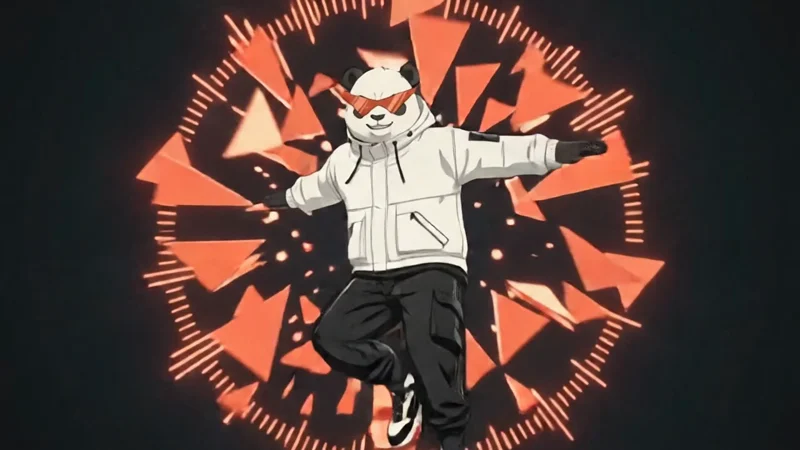
Create a 15-second, 16:9, text-to-video commercial and anime game-style character reveal for GetReelMaker. Generate one video with exactly 13 main cuts. Build everything from the text alone. No image, video, audio, or first-frame inputs. CHARACTER LOCK. One cool, athletic, stocky black-and-white panda, standing upright. Round warm-white face, black eye patches, round charcoal ears with thin white rims, a small dark triangular nose, and a subtle confident grin. His signature sunglasses are wide and sharply upswept, with pointed red-orange lenses, a thick angular black frame and bridge, and distinct black diagonal slash accents across the lenses. He wears a white technical windbreaker with black seams, black utility cargo trousers, and chunky black-and-white sneakers with red-orange accents. Keep the same face, build, outfit, and sunglasses throughout. The glasses stay on. ART DIRECTION. Sharp futuristic 2D anime cel shading, with 80% kinetic editorial graphics and 20% athletic character action. Warm white, deep charcoal, cool silver, and vivid red-orange. The diagonal slash from the sunglasses becomes a red-orange timeline playhead that cuts through abstract clip cards, crop brackets, and play triangles. Use bold, clean typography with the exact spelling and capitalization specified below. CUT 01 | 0.00–1.00s. A massive red-orange circle slams onto a warm-white field. Two charcoal bars wipe across it. A play triangle punches into the center as timeline ticks flash on the bass hit. CUT 02 | 1.00–2.00s. The circle becomes a porthole framing an extreme close-up of the panda’s signature sunglasses. A diagonal lens slash lights up, sweeps across the frame as a playhead, and breaks the porthole into flat graphic panels. At 1.60s, reveal “AI Reel Maker” in bold charcoal type on a solid warm-white panel. CUT 03 | 2.00–3.10s. The panda sprints in from the left and power-slides along a giant black-and-white editing timeline. Clip blocks snap into place behind his sneaker. Carry the same “AI Reel Maker” lettering across the cut, locked in the clear upper part of the frame and fully readable until 2.85s. Whip-pan out. CUT 04 | 3.10–4.00s. A stroboscopic triptych shows the same panda in three poses: takeoff, midair tuck, and one-foot landing. The three crop frames lock together on the beat. CUT 05 | 4.00–5.10s. Track the panda spinning through a giant rotating ring of play triangles and waveform ticks. The ring bursts into flat shards. Snap-zoom onto the red-orange sunglasses. CUT 06 | 5.10–6.00s. The panda plants one paw on a floating clip tile and vaults over it. The tile compresses under his paw, springs back, and splits cleanly as the diagonal playhead strikes. CUT 07 | 6.00–7.00s. The panda drops into a low street-dance spin. Three tinted silhouettes echo the movement and snap back into his upright pose. Red-orange motion arcs close into a single circular mark. CUT 08 | 7.00–8.00s. Four kinetic typography hits, one per beat. “COOL” slams into view, then the panda’s knee-slide sends the sunglasses slash slicing through it. “FAST” surges forward with a racing strip of clip blocks. “SMART” snaps into place as three separate input icons for text, image, and visual reference fan out beside a video preview. “CLEAR PRICING” lands on a stationary white card with a credit icon. Give each phrase a clean, readable instant before it moves. Keep the final card fixed across the next cut. CUT 09 | 8.00–9.00s. Hold “CLEAR PRICING” sharp and stationary through 8.65s in a clear foreground strip. A generic credit estimate indicator lights up before the play triangle, with no price or numbers. Behind the strip, the panda runs up a tilting wireframe grid, kicks off, and freezes inside a circular target lock. The playhead wipes away the card. CUT 10 | 9.00–10.10s. The freeze releases. The panda dives straight toward the camera through stacked preview panes. Each pane snaps into flat shards. End with his sneaker wiping across the entire frame. CUT 11 | 10.10–11.10s. In one rapid montage beat, flash four graphic posters of the same panda: mid-flip, sliding, landing, and paws in pockets. Change the crop and layout each time. Use graphic shapes without headlines. CUT 12 | 11.10–13.00s. On a warm-white stage, the panda lands a final backflip and straightens with paws in pockets. Concentric red-orange rings and clip fragments blast outward on the biggest bass hit. Freeze on his confident grin, then flash to white. CUT 13 | 13.00–15.00s. Hold a clean, stable final card for the full two seconds. Large black headline: “GetReelMaker”. Smaller line below: “AI Short Video Generator”. The panda stands beside the lettering with his signature sunglasses clearly visible. A subtle red-orange pulse moves behind the composition while both lines stay still and unobstructed. EDIT AND SOUND. Hard cuts on the beat, graphic matches, snap zooms, shutter flashes, and short speed ramps. Drum-heavy electronic future bass with synchronized sneaker hits, timeline clicks, pane snaps, and a short electronic stinger at the end. No spoken dialogue, extra characters, weapons, flames, extra on-screen words, or placeholder lettering.
What Is AI Text to Video?
AI text to video lets you generate original video clips directly from written descriptions in a web studio.
Turn your rough ideas into draft shots ready for later editing. If you already have a specific photo, try Image to Video to guide the opening frame with greater visual control.
Switch to Image to VideoWhy choose our text to video tool for quick drafts?
Turn initial visual concepts into dynamic footage without staging physical shoots or preparing image references.
Start without source footage
You do not need camera gear, physical sets, or existing visual references to produce a scene from scratch.
Describe a businesswoman entering a meeting room in one dress shoe and a pink bunny slipper, then let the system handle the clip.
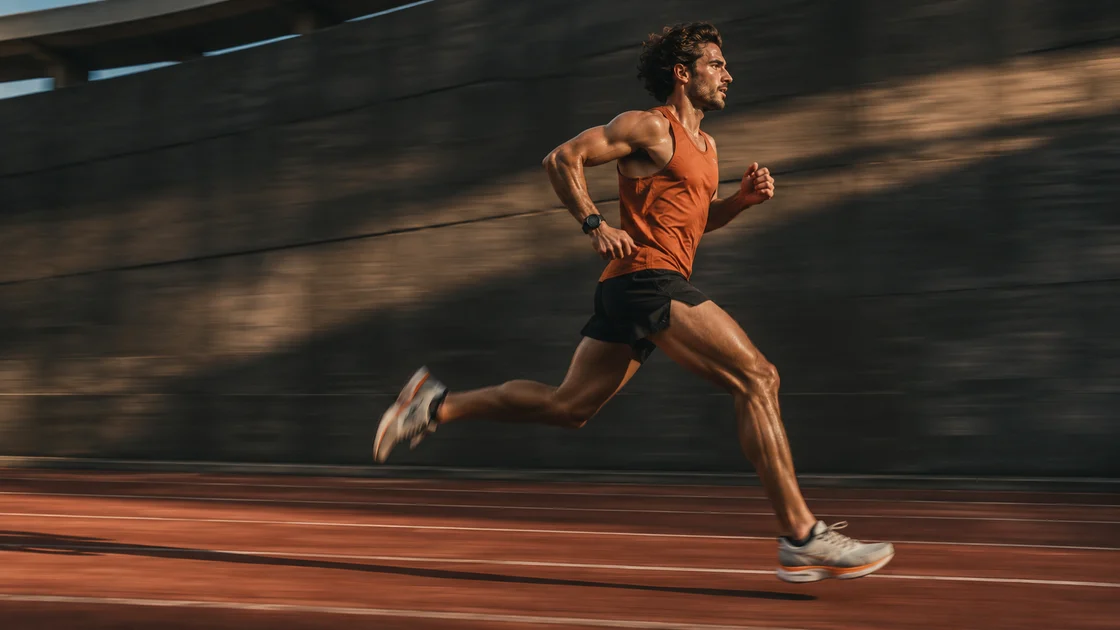
Preview camera motion early
Adjust camera angles, movement, and atmospheric lighting simply by modifying your text prompt, making it easy to test multiple creative alternatives.
A runner sprints along a track as the camera tracks alongside from a low angle, switching to a wide static view when the prompt changes.
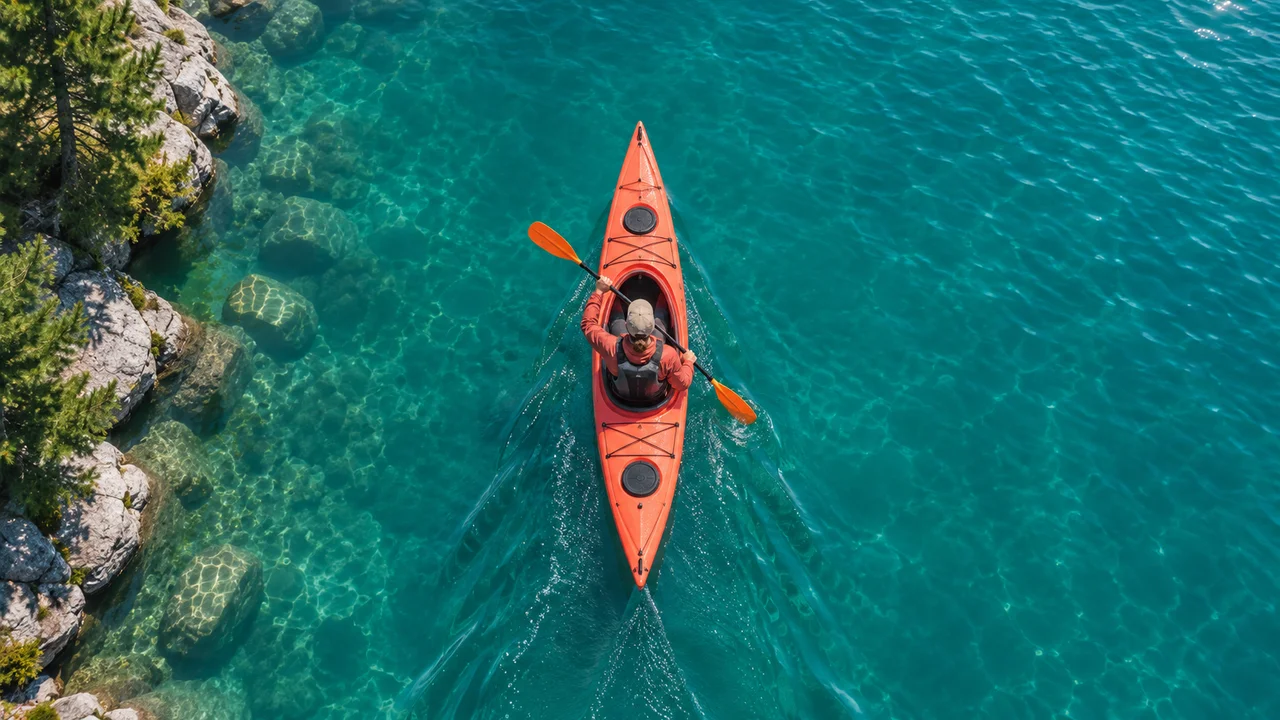
Match your target format
Pick 16:9 landscape when you are planning a screen cut, or switch to 9:16 vertical for social posts whenever your chosen model supports that format.
Select dedicated framing directly in your settings, avoiding awkward manual crops that might accidentally cut off critical subject motion after rendering.
Check credit estimates upfront
Choosing a model and settings in the workbench displays estimated credits before generation.
Check EstimatePractical Applications for Text to Video
Generate concept clips for product teasers, social media cutaways, and storyboards.
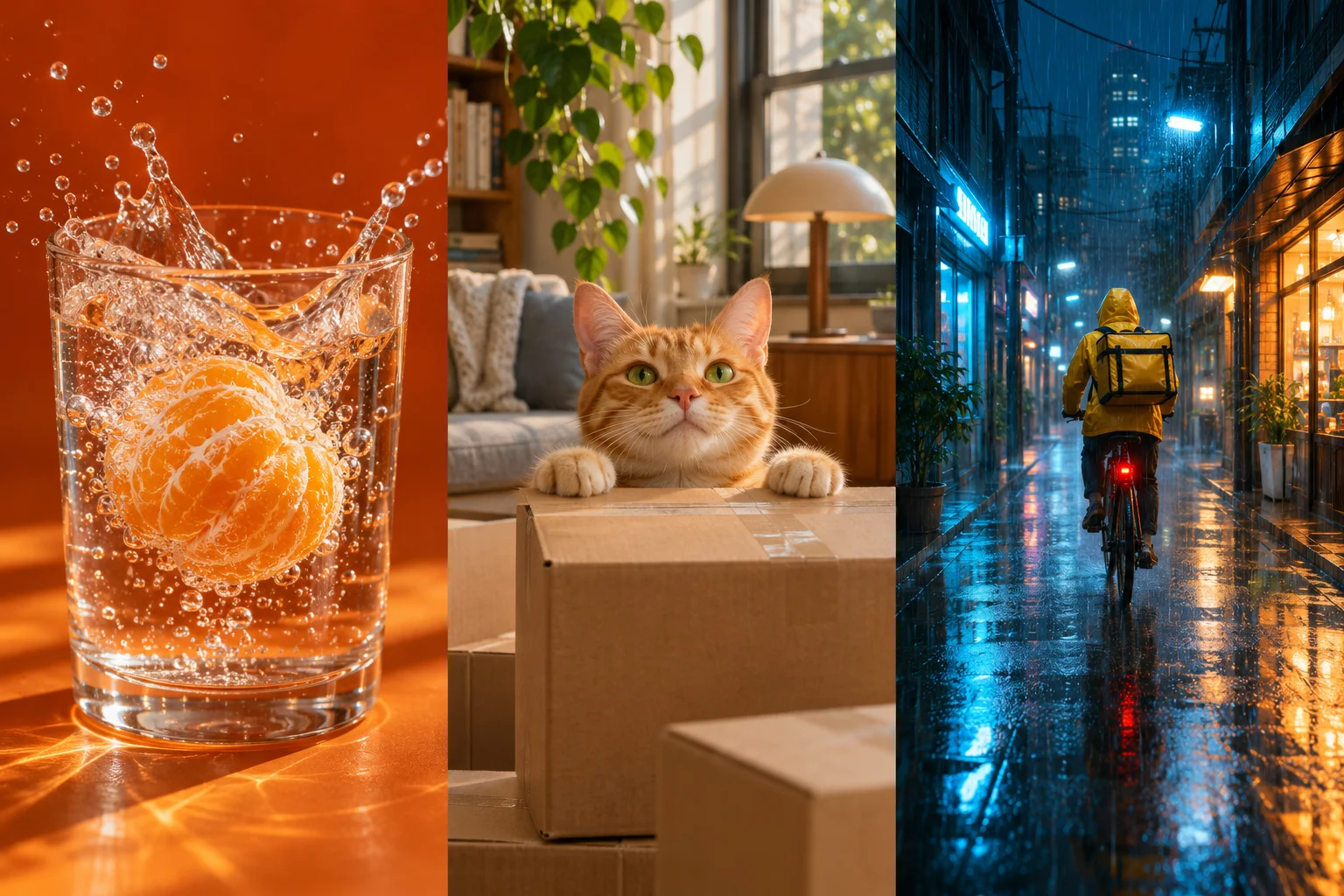
Product video ads
Preview an orange falling into sparkling water against an orange background with gentle backlighting and slow-motion pacing. This text to video prompt helps you test beverage ad concepts and motion ideas before organizing a costly studio shoot.
When the final can design is already locked, switch to image to video instead.
Vertical social clips
Vertical clips work best when focused on one readable visual action, like an unboxing motion or a quick recipe step. Keeping the movement simple helps generate cleaner motion without unwanted distortion.
Export your finished clip, import it into your regular video editor, and drop in your own captions, trending music, or voiceover to finish the post.
Film storyboards
Plan a moody scene of a cyclist in a bright yellow raincoat moving through wet streets. Use text to video exploration to compare camera height and street lighting moods early, making shotlist planning much clearer before filming.
Describe elements like wet pavement, low-angle tracking, and soft streetlight reflections. If a director needs an exact opening angle, provide an initial reference image first.
Supported Text to Video AI Models
 Veo
 Kling
 Seedance
 Wan
 Runway
 Hailuo AI
 Grok Imagine
 HappyHorse
- Gemini Omni
 PixVerse
Supported aspect ratios, durations, resolutions, and audio options vary by AI model.
Create clips with text to video in three simple steps
Describe your scene, configure generation parameters, then preview and download.
- 1
Describe Your Scene
Type your scene description into the prompt box, detailing the main subject, single action, environment, camera motion, and lighting mood.
- 2
Choose Model and Check Credits
Select an AI model and configure your desired aspect ratio and clip duration. Review the estimated credit calculation on screen, ensuring you are logged into an account with sufficient balance before proceeding.
- 3
Generate, Preview, and Export
Submit the generation request and let the processing queue render your video. Once completed, inspect the resulting shot in the preview player and download the file to assemble with external editing tools.
How to Write Effective Text to Video Prompts
Structure your prompts with five core building blocks to guide camera motion and visual realism.
- Subject
- Define the primary person, vehicle, creature, or object with concise visual specifics.
- Action
- Describe a single, distinct movement rather than an elaborate multi-scene plot.
- Scene
- Set the physical location, weather, architectural details, and background depth.
- Camera Motion
- Specify camera placement and movement, such as low-angle tracking, slow zoom, or panning.
- Lighting & Mood
- Indicate lighting direction, color temperature, and photographic aesthetic.
Sample Prompt
A young woman wearing a tailored dark grey suit opens a glass conference room door and enters, camera cuts to a foot-level closeup revealing a formal black dress shoe on one foot and a pink fuzzy bunny slipper on the other, soft indoor ambient light, cinematic tone.
Focus on one clear action per prompt before adding complex scene details. Switch to Image to Video if you need an exact starting frame.
Frequently asked questions about text to video
What is the difference between text to video and image to video?
Text to video creates an entirely new clip from written words alone. Image to video takes your uploaded picture as the starting frame, though subsequent frames will still evolve naturally through generation.
Do I need reference images to generate a video?
No, reference images are completely optional. You can generate standalone video clips by typing a detailed description of the subject, environment, lighting, and camera angle into the prompt field.
Is this text to video generator free to use?
You can browse the interface freely, but you must sign in to generate videos. Generation requires credits, and generation costs are clearly displayed before you submit.
How do I choose the right model for my shot?
Start with your delivery requirements. Different models support different aspect ratios, maximum durations, resolution choices, and sound capabilities, so filter by what your final timeline actually requires.
Why do video settings differ across models?
Each underlying model provider supports specific clip lengths, resolutions, and framing proportions. The workspace interface updates available menus automatically based on the model family you currently have selected.
How long does it take for a video clip to generate?
Generation times vary based on queue demand, selected model, clip duration, and current server load. Your estimated credit cost displays before submission, and completed clips appear in your dashboard history.
Do all generated videos include background sound or audio?
No, audio generation is only supported on select models. If a model does not offer native sound, the workspace produces a silent clip ready for music or voiceover in post-production.
How can I fix inconsistent or warped visual results?
Simplify your prompt to focus on one subject and a single primary motion. Avoid conflicting adjectives, specify steady camera moves, or supply a starting image if scene composition must stay grounded.
Can I use generated video clips in commercial projects?
Commercial use depends on our Terms of Use and the underlying model provider's specific license terms. Review both agreements before publishing clips in client deliverables or paid advertisements.
Are my prompts and project drafts kept private?
See our Privacy Policy for how we collect and use data.
Explore related creation tools
Ready to generate your first clip?
Describe your scene, configure generation parameters, then preview and download.