

Examples and tutorial
AI Image to Video Generator
Add motion to a still image inside GetReelMaker's shared 'Text / Image' tab. Upload one source image into the optional image field, then specify what moves and what stays fixed. Suitable for product stills, portraits, or illustrations; exact visual preservation is not guaranteed. Veo 3.1 Lite, Fast, and Quality tiers are available subject to mode.
How to get started
Upload One Image
In the 'Text / Image' tab, add a single product photo, portrait, or illustration to the optional image field.
Prompt Motion and Static Areas
Describe the desired motion and clearly specify which elements must remain still. Exact preservation is not guaranteed.
Select Model and Render
Pick an available Veo 3.1 model tier (Lite, Fast, or Quality) according to your active mode and generate.
Ideas to try
Product Photography
Animate tabletop product stills with gentle lighting changes, steam, or light reflections.
Character and Portrait Motion
Add natural eye blinks, gentle head turns, or subtle hair movement to still portraits.
Animated Concept Art
Introduce ambient environment movement such as drifting mist or water ripples into 2D illustrations.
Video prompts to try
Amber Bottle Still
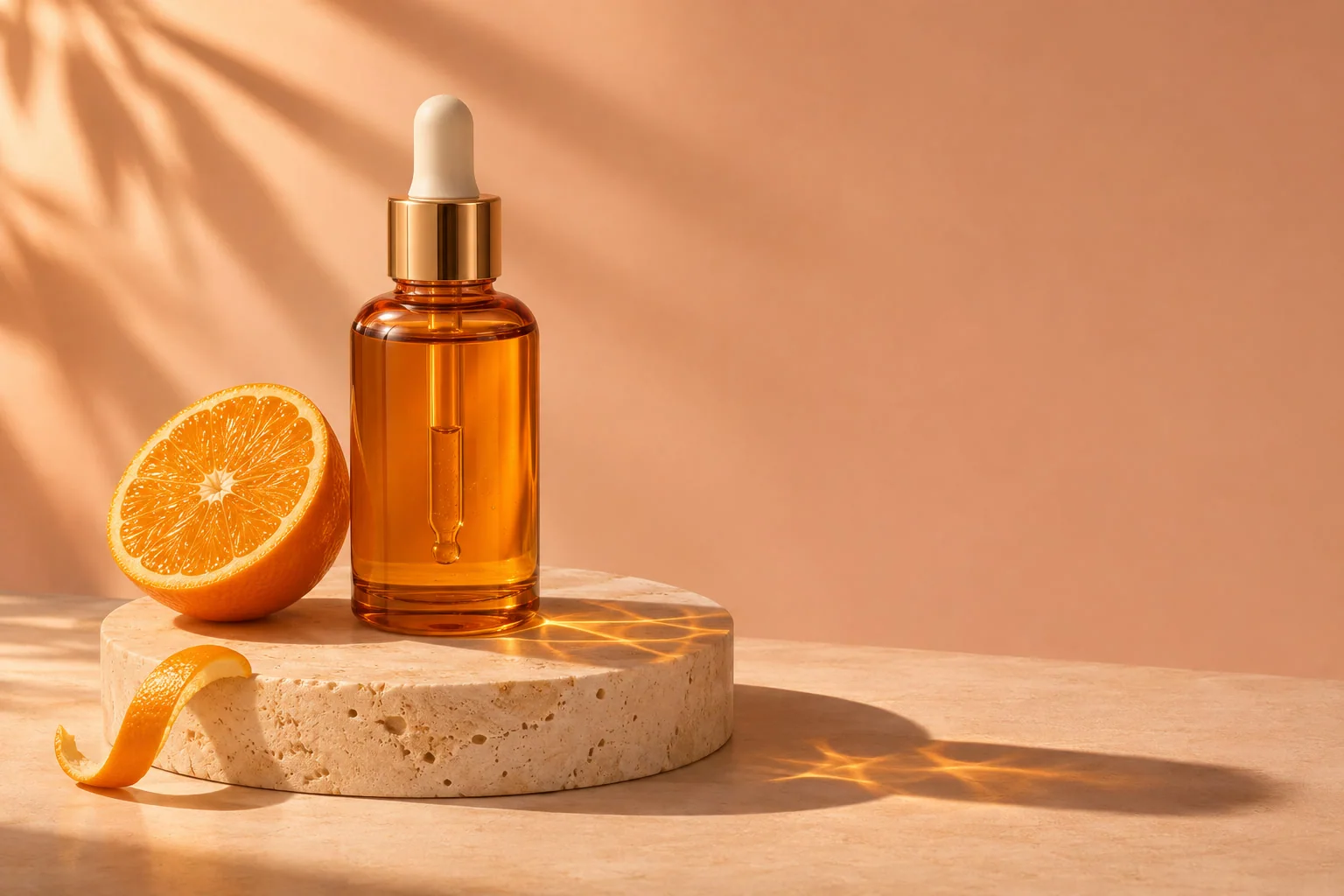
An amber glass bottle on a stone tabletop remains completely stationary while soft natural sunlight slowly sweeps across the scene.
Studio Portrait
A portrait subject slowly looks toward the camera with a subtle blink; hair shifts slightly while the studio backdrop remains motionless.
Frequently asked questions
What is the difference between References and Start & End Frames?
Reference images guide overall visual appearance, while start and end frames help steer opening and closing shots. Results naturally vary.
Will the generated video preserve my original image exactly?
No. The model animates the visual elements based on your prompt, but subtle shifts in fine details, geometry, or textures can occur.