

AI Product Photography
Upload a product photo and apply a reference-image editing preset to transform its background, lighting, and framing into a still image.
What you can create
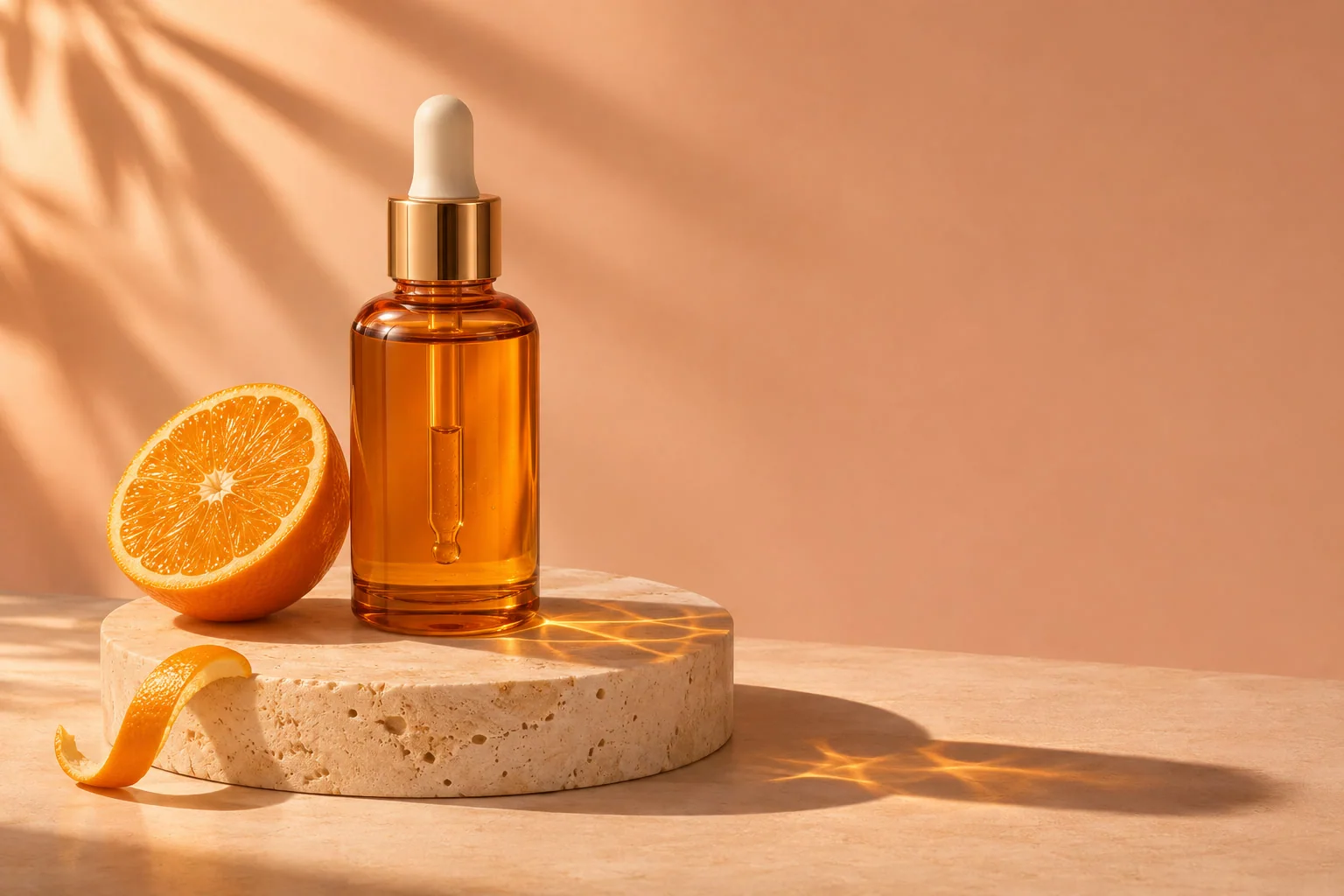
Amber Bottle with Citrus
A glass amber bottle sits on a white marble surface surrounded by sliced citrus and soft diffused light.
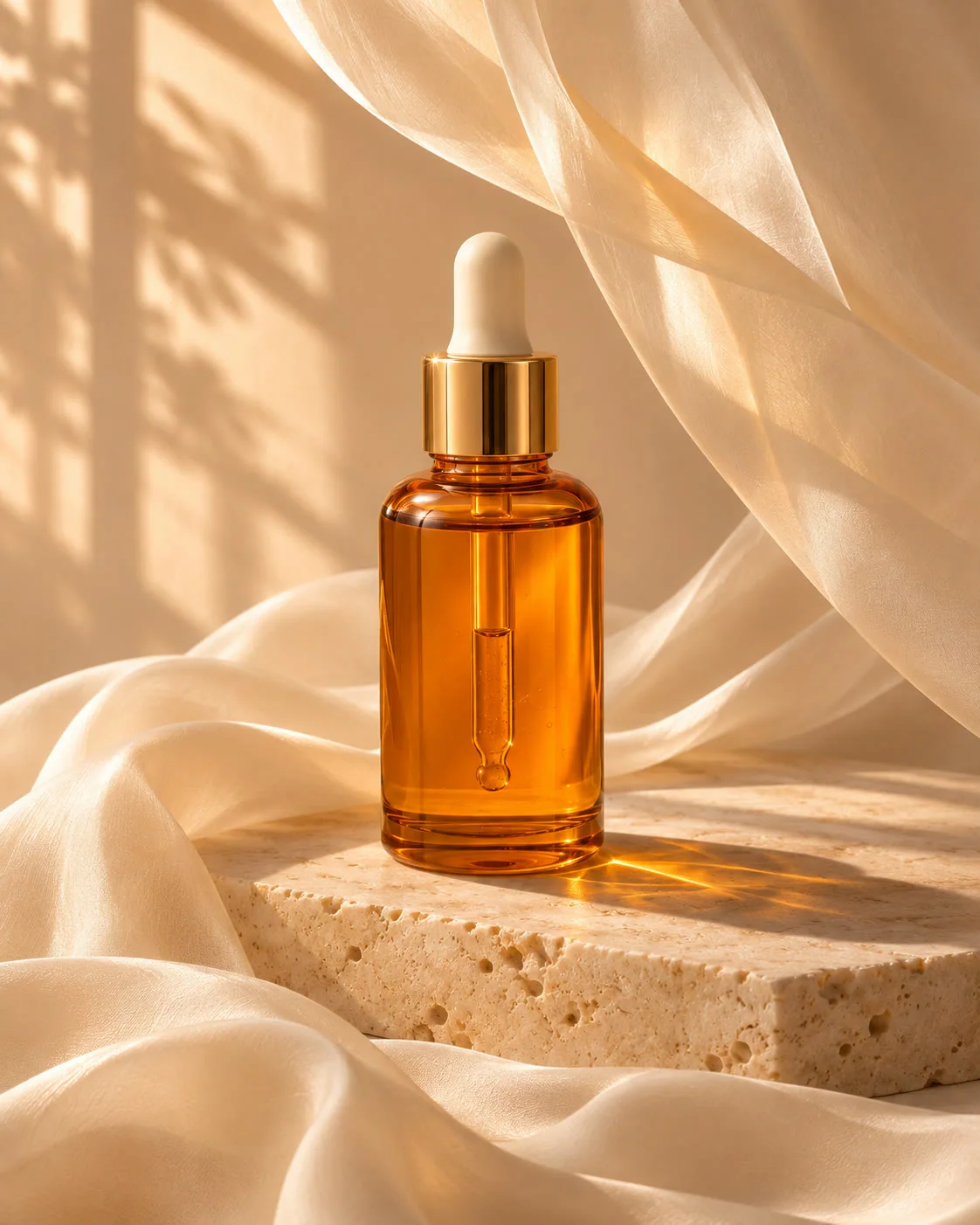
Fabric Backdrop Styling
A skincare jar is placed against a draped linen backdrop with warm side lighting that highlights texture.
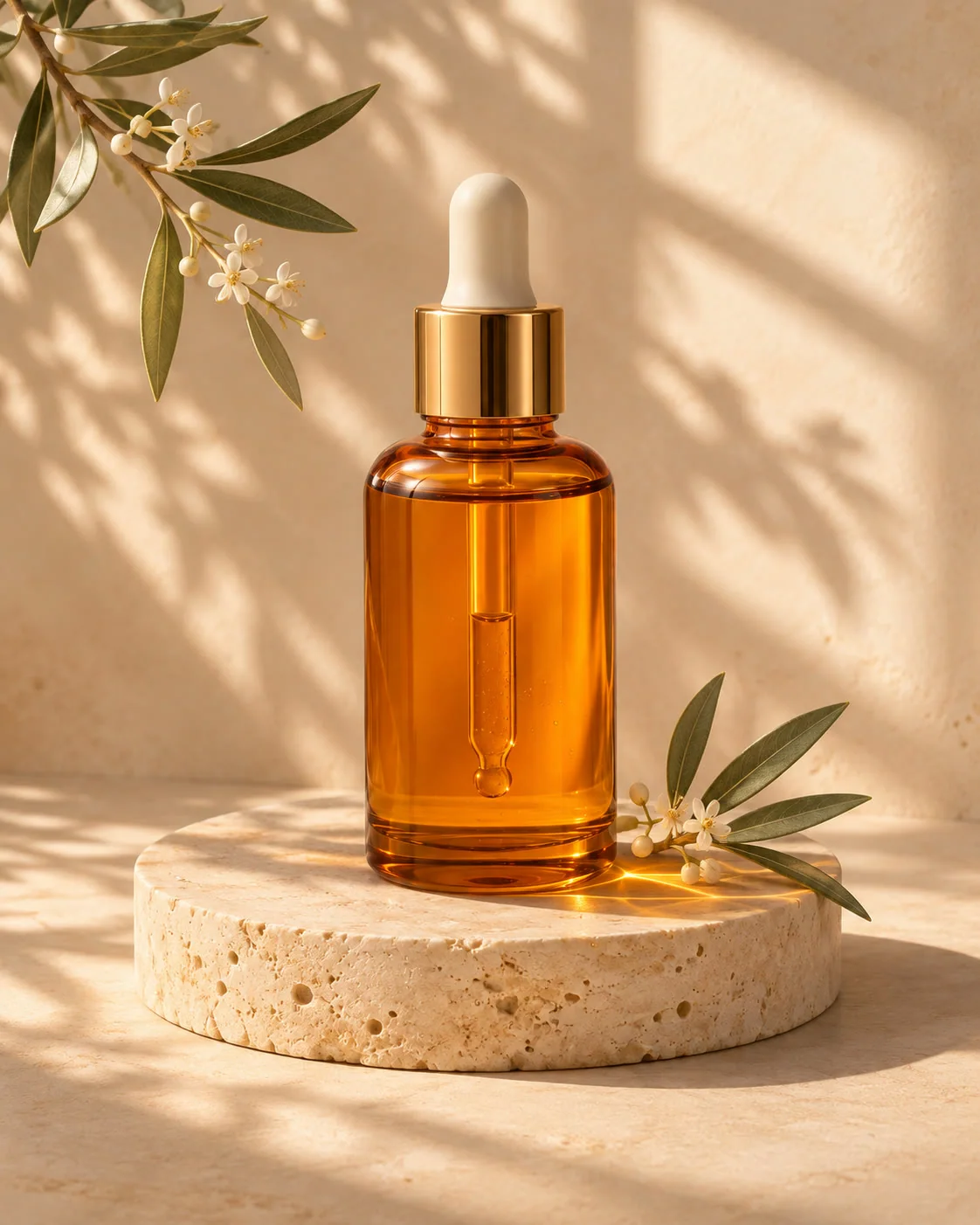
Botanical Styling
A perfume bottle is nestled among dried botanicals and eucalyptus sprigs on a matte sage surface.
How it works
- Example prompt
Amber bottle on warm neutral stone with subtle side light and preserve label details.
Upload your product photo
Start with a clear, well-lit photo of your product as the base input.
A clean original shot gives the AI more accurate detail to work from.
- Input
- One product photo uploaded by the user
- Edit method
- Prompt-guided reference-image preset applied to the upload
- Output
- Single styled still image; crop and resolution vary by model
Describe your scene
Type a prompt specifying your preferred background, lighting style, and framing.
Be specific about surface material, light direction, and any props you want included.
Review the output carefully
Check label text, packaging details, and brand markings before using the image.
AI edits may alter fine print or colors, so manual review is always recommended.
Common uses
E-commerce listings
Quickly refresh product photos with on-brand backgrounds without a reshooting session.
Social media assets
Create styled still images that fit different platform aesthetics from one source photo.
Brand pitch decks
Produce polished product visuals for presentations without a full studio setup.
Output formats
Output specs depend on the editing preset and model selected.
- Input
- One product photo uploaded by the user
- Edit method
- Prompt-guided reference-image preset applied to the upload
- Output
- Single styled still image; crop and resolution vary by model
Before you publish
- Verify label accuracy
Zoom in to confirm that all text, logos, and barcodes match your original product exactly.
- Check color fidelity
Compare the output colors to your brand palette before using the image in marketing.
- Estimate credits first
Use the composer credit estimate in GetReelMaker before generating to avoid surprises.
Frequently asked questions
Do I need to upload a photo?
Yes, this tool edits an existing product photo and cannot generate a product image from scratch.
Will my label text stay accurate?
AI may alter fine details, so always review label text and packaging copy in the output before use.
Can I generate a video from the output?
Video rendering is not available on this page; use the UGC Product Video Generator separately.
How many credits does this use?
Credit cost varies by model and preset; check the composer estimate in GetReelMaker before you generate.
Get started
Upload your product photo, write a clear scene prompt, and produce a styled still image ready for review and use.
Start a Draft