
Examples and tutorial
AI Video Generator from Text and Images
Create a short video from a prompt, animate a still image, or guide a transition with a first and last frame. The video workspace also has separate modes for visual references and editing an existing clip.
Shot breakdown
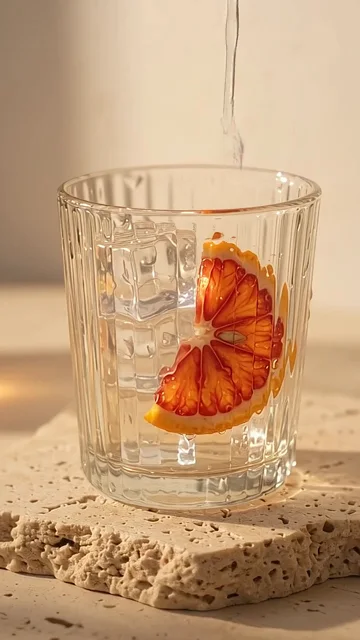
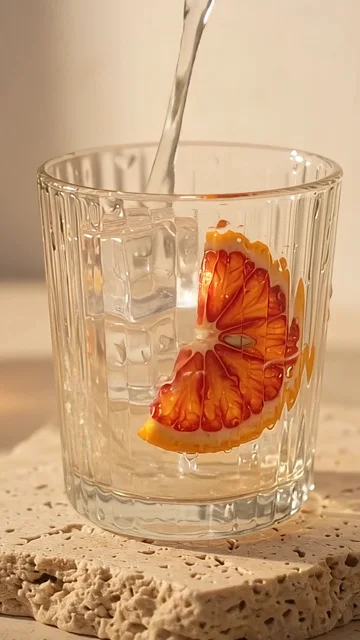
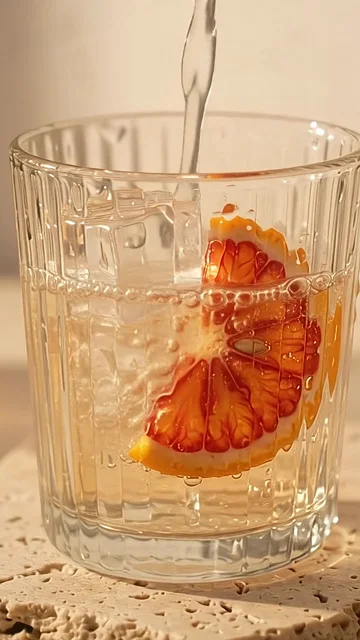
Exact prompt submitted to Google Flow
Vertical 9:16, one continuous four-second macro product shot. A clear ribbed tumbler with ice and a thin blood orange slice sits on pale travertine in warm afternoon sunlight. A thin stream of sparkling water pours in from above; fine bubbles catch the light as the camera makes a slow, steady push toward the glass. Photorealistic beverage advertising, amber highlights and soft cream background. No text, labels, people, or cuts.
Ideas to try
Match the input and camera direction to the kind of clip you want to make.

Animate a product photo
Keep the product in place and give the camera one clear move, such as a slow push toward the bottle.
Compose for Reels and Shorts
Choose 9:16, keep the main action in the center, and leave room for captions or platform controls.
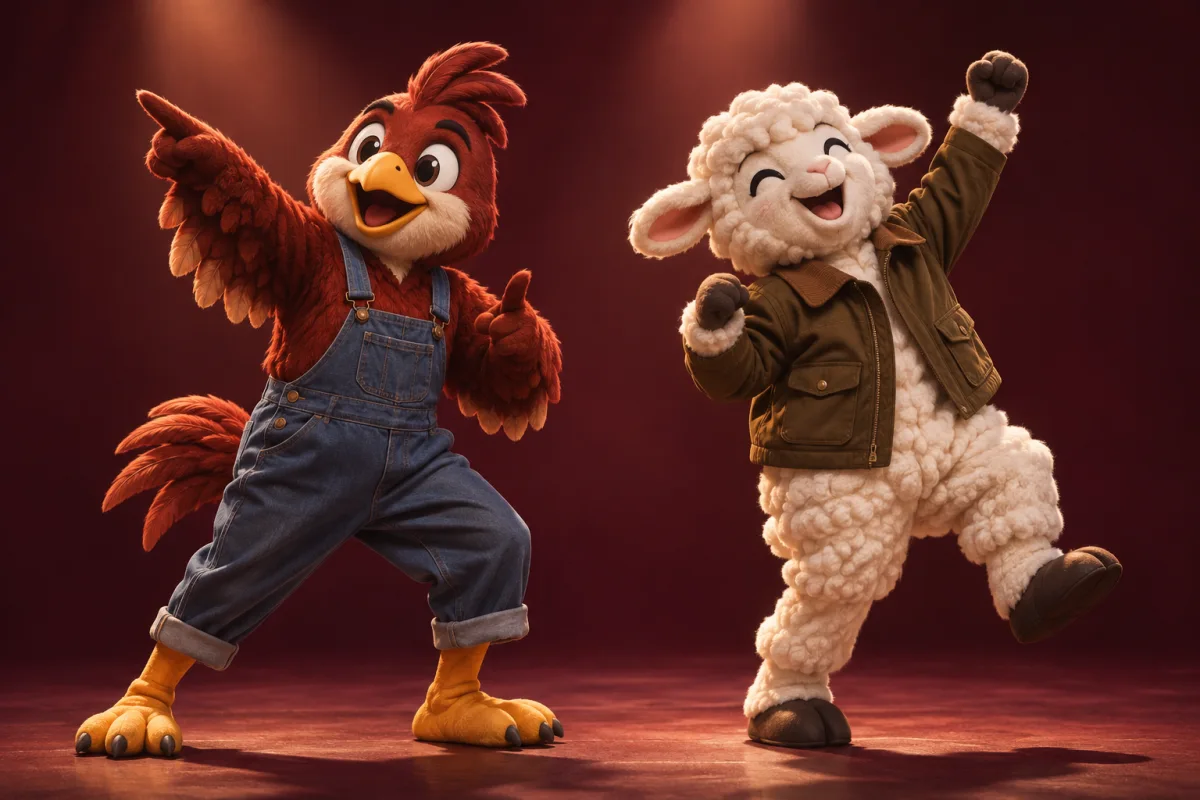
Build a scene with references
Upload a reference for each character and describe where each one stands and what they do.
Plan a first-to-last-frame reveal
Give the model a clear opening and ending, then describe the movement between them.
How to get started
Follow along with the controls in the workbench above.
Video prompts to try
Image to video · Product reveal
Slowly push in toward the bottle as soft window light moves across the glass. Keep the label readable and the bottle centered.
Text to video · Coastal drive
A wide aerial shot follows a car along a winding coastal road at sunset. Track smoothly from behind with the horizon level.
Frequently asked questions
Can I turn a photo into a video without shooting footage?
Yes. Add the photo in Text / Image and describe the motion you want. A clear subject and a simple action are a good starting point.
Why do the available output settings change?
Each model and mode supports different inputs and output options. The settings shown in the workspace apply to your current selection.
Can I replace a person in an existing video?
Use Video Swap when you want an existing performance with a new character. Use Video Edit for changes directed by a prompt.